
This article explains the different sections in a Backflow Test/Survey Notice and where the data comes from. It also denotes which sections are changeable by the user and how to change them.
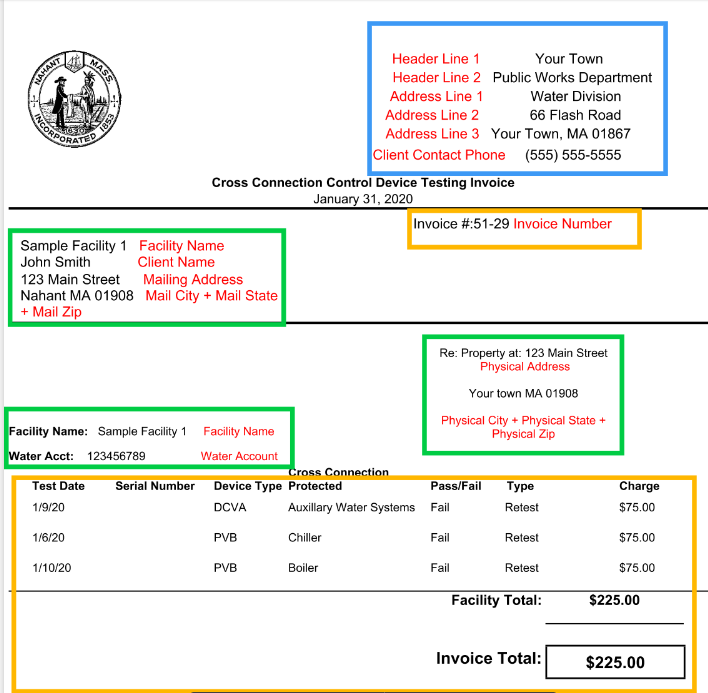
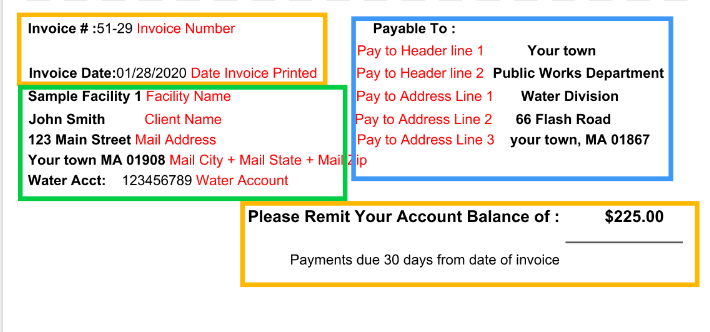
Invoice Legend
1. Blue : Changeable upon request - User can request to update this section by sending a request to support@idatacollect.com
2. Orange : Software generated - user cannot change
3. Green : Changeable - User can update this section from the Facility screen. Directions are below the Notice.
To Change the Highlighted Green section:
- Select the Cross Con tab from Backflow Menu
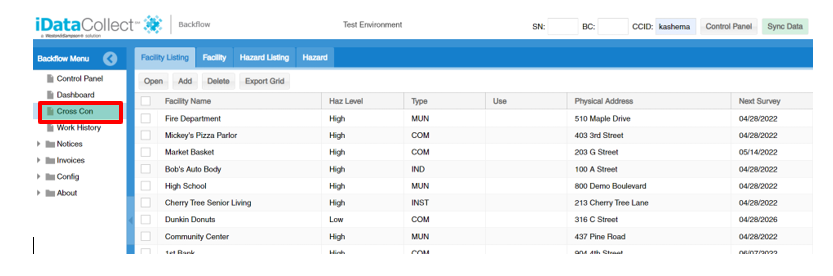
- Select the checkbox for row to choose the facility that you would like to open
- Click on Open
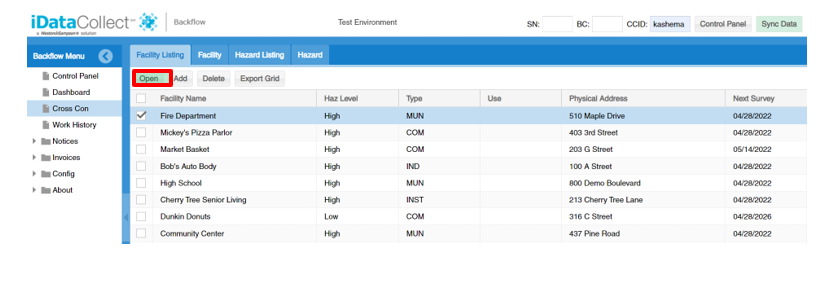
- It will take you to selected facility page where you can make necessary changes(e.g., Name)
- Once you make the changes click save
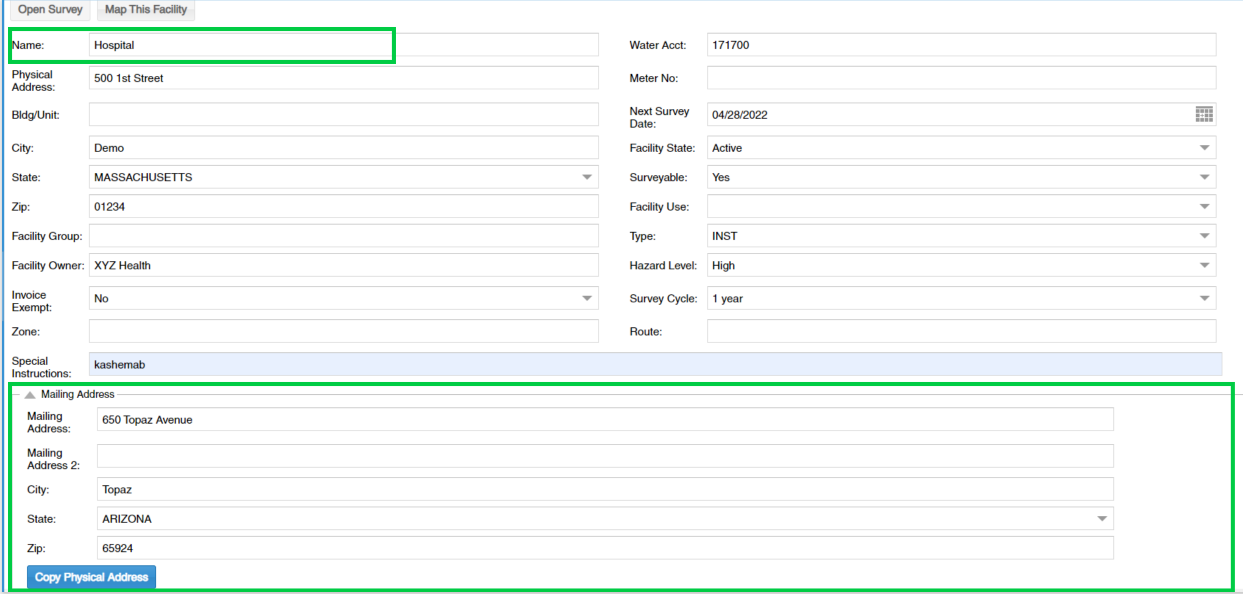
- To make changes in Facility Contacts click on Edit and make necessary changes
- Once you are done editing click on save

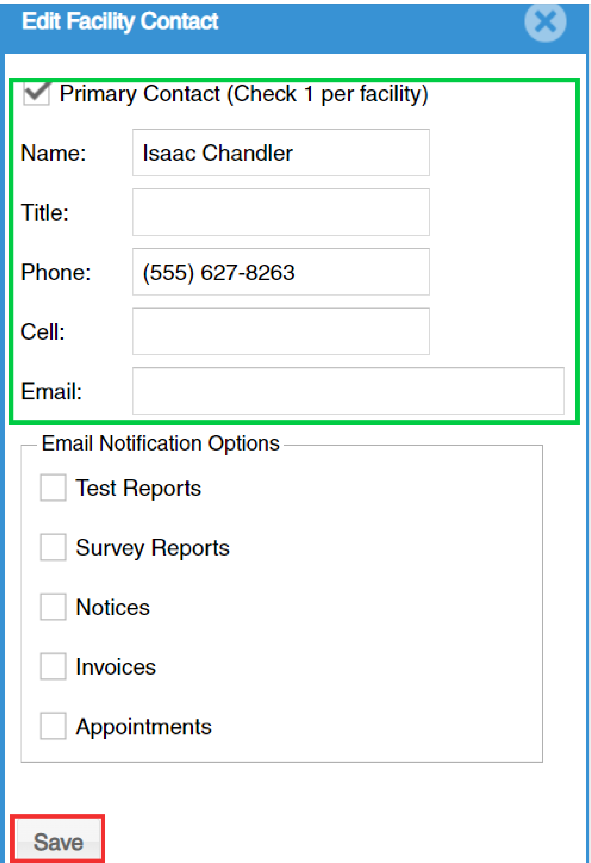
- The facility contacts screen will be updated as shown below. Here the phone number is updated

Comments
0 comments
Please sign in to leave a comment.