
1.Choose the Cross Con tab from Backflow Menu
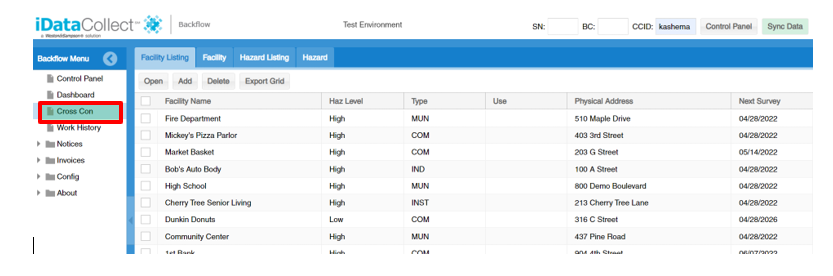
2. Even though there is a delete option, it is highly recommended to change the Facility State to Inactive instead of deleting it.
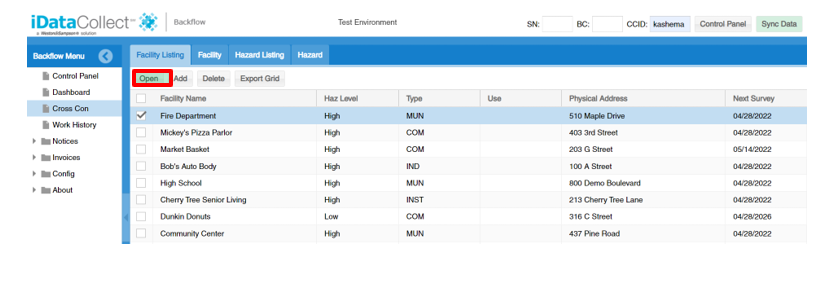
3. To make the Facility Inactive first Check the box from left to choose the Facility that you would like to make Inactive. Then click open. In addition, you can also open a piece of work on the Control Panel for the Facility you wish to make Inactive
4. It will bring you to the Facility Screen
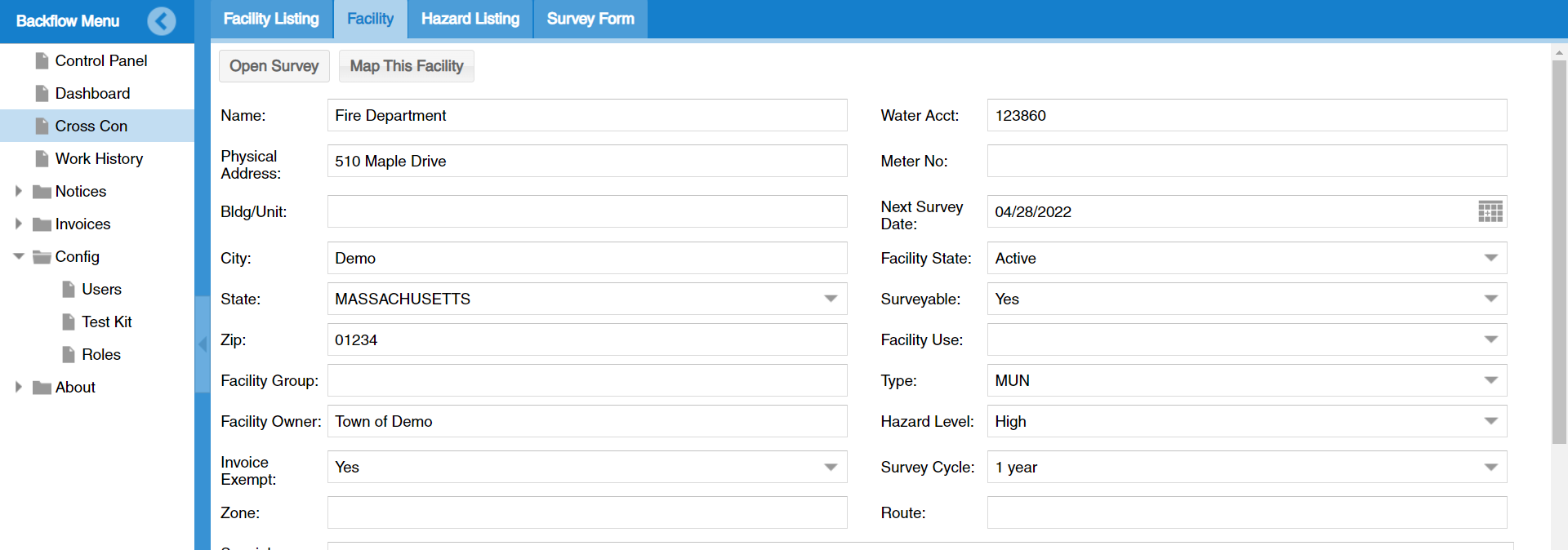
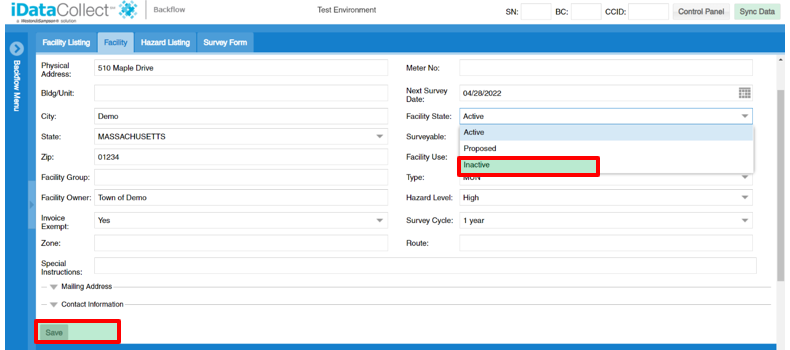
5. Under the Facility State on mid right click on the arrow.
6. A drop down will appear.
7. choose Inactive from drop down.
8. Click on Save
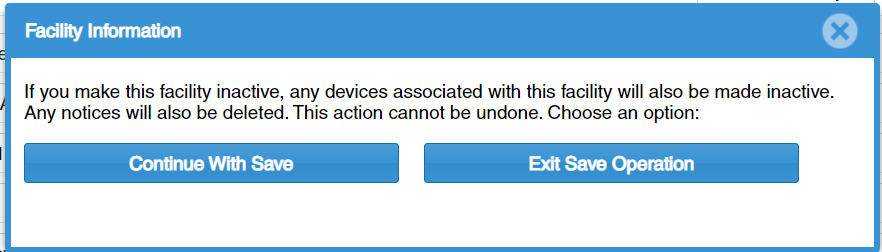
9. When you click on Save a new window will appear where it asks whether you want to make the Facility Inactive because it will make any devices associated with the Facility Inactive and notices will be deleted. If you would like to proceed with Inactive process, click on Continue With Save. Otherwise Exit Save Operation.
10. If you chose Continue With Save you will see a confirmation box, at the top of the Facility Screen, that confirms your Facility data was saved. The box goes away after a few seconds. If your Facility was Active, all the work from the Control Panel for this Facility's Tests and/or Surveys has now been removed. This Facility will still be visible on the Facility Listing Screen.
Comments
0 comments
Please sign in to leave a comment.