
Test Kits can be added and updated in the Backflow software. A Test Kit must be selected from the Test Kit list on the Test screen, to perform a test. If a Test Kit's expiration date is past, it will not be visible on the Test screen.
Add A Test Kit:
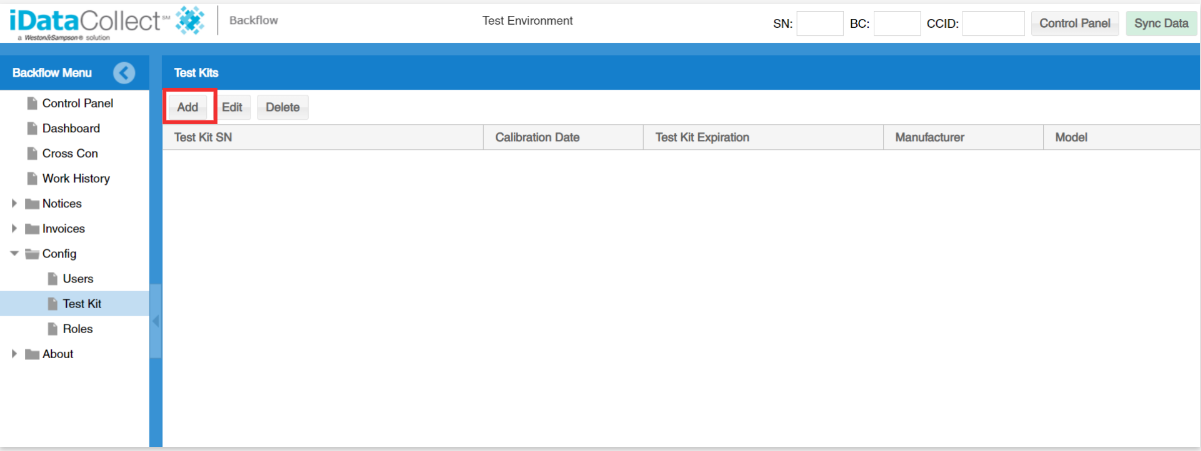
1. From the Backflow Menu, click the arrow next to Config, then click the Test Kit folder
2. This will open the Test Kit screen. Click the Add button
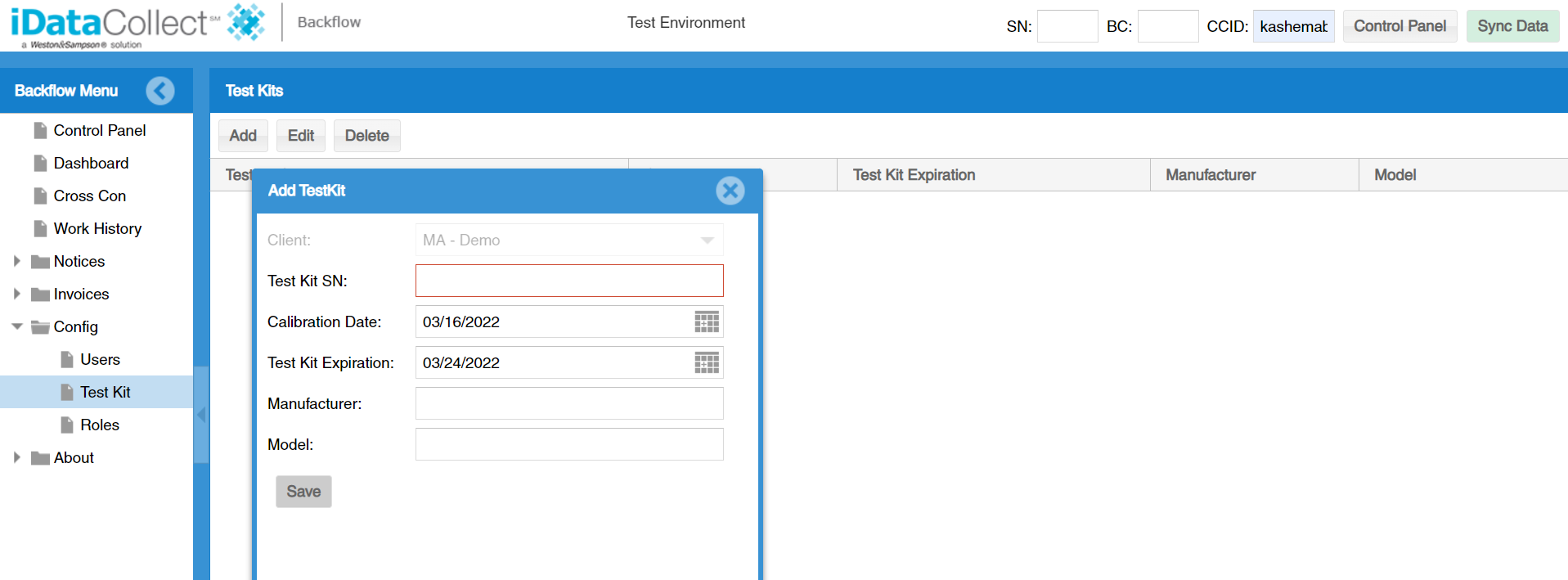
3. This will open the Add TestKit window.. Enter the following:
a. Test Kit SN
b. Calibration Date
c. Test Kit Expiration
d. Manufacturer
e. Model
f. Click Save
4. The new Test Kit has been added

Update A Test Kit:
1. From the Backflow Menu, click the arrow next to Config, then click the Test Kit folder
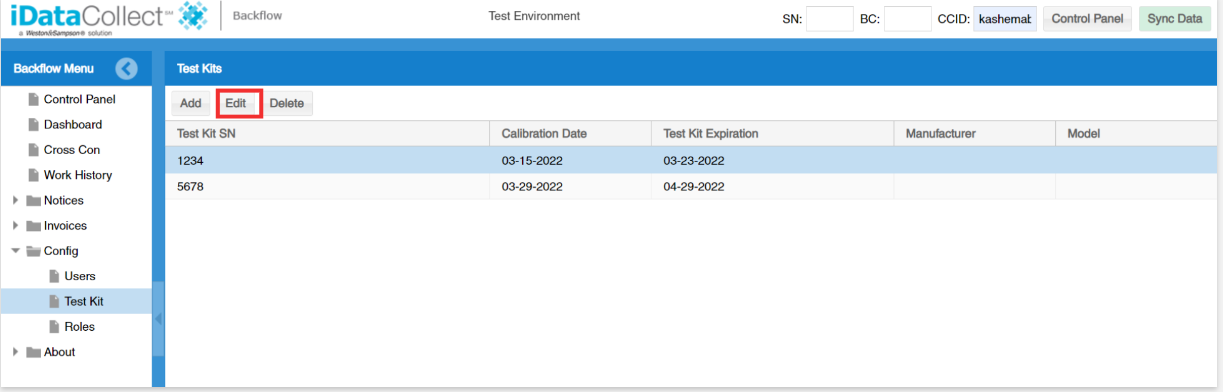
2. This will open the Test Kit screen. Choose the Test Kit that needs to be updated and click edit
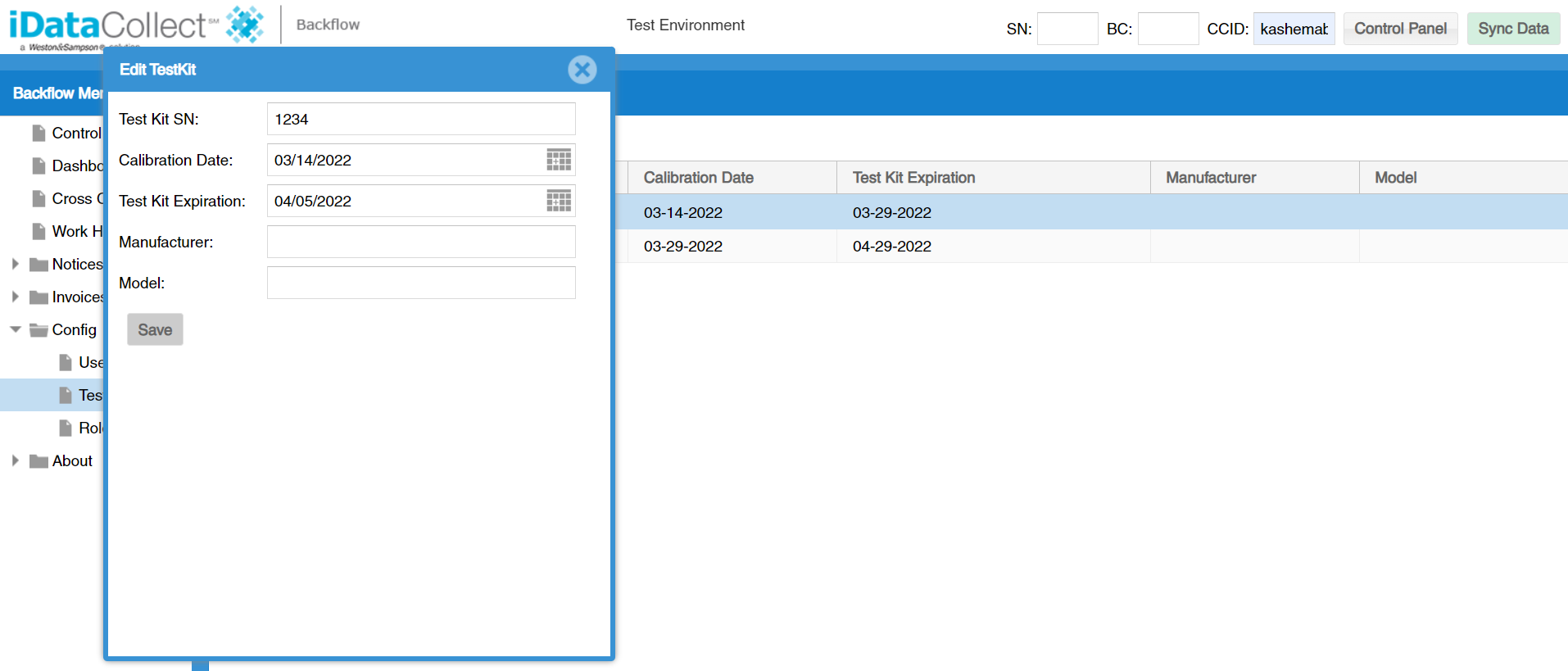
3. Change the required fields and then click Save
4. If the Test Kit has expired, change the Calibration Date and Test Kit Expiration and then click Save
Comments
0 comments
Please sign in to leave a comment.