
Add A Technician User Without Software Access:
This is often done for technicians who document their tests on paper. These can be employees or contractors.
1. From the Backflow Menu, click the arrow next to Config, then click on Users
2. This will open the User screen. Click the Add button
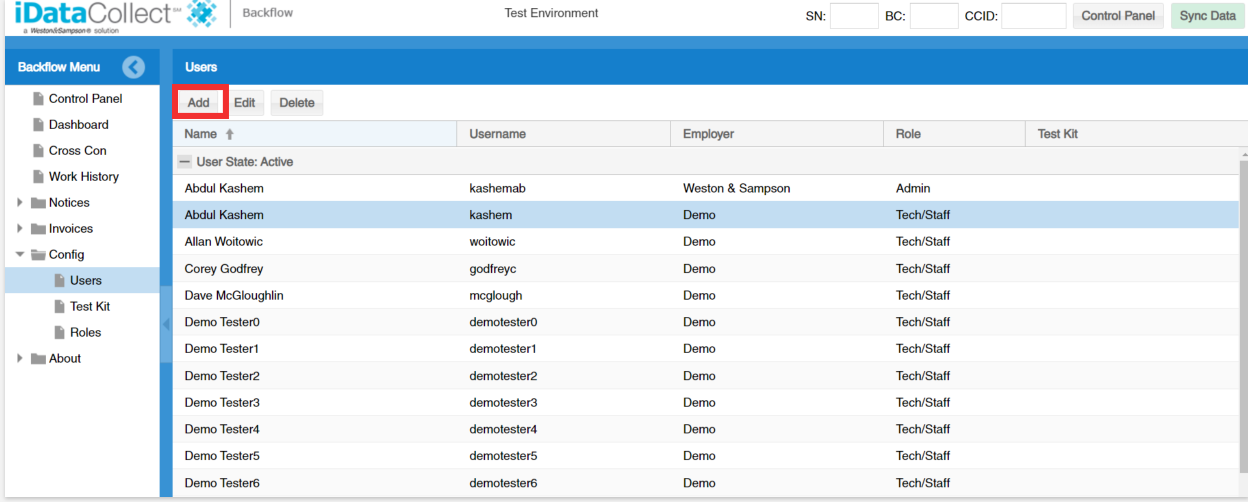
3. This will open the Add Users window. Enter the following:
a. First Name (User's first name, required)
b. Last Name (User's last name, required)
c. User State (Choose Active, required)
d. Employer ( Your town, required)
e. Role (Tech/Staff, required)
f. Email (Their email)
g. Phone Number (Their phone number)
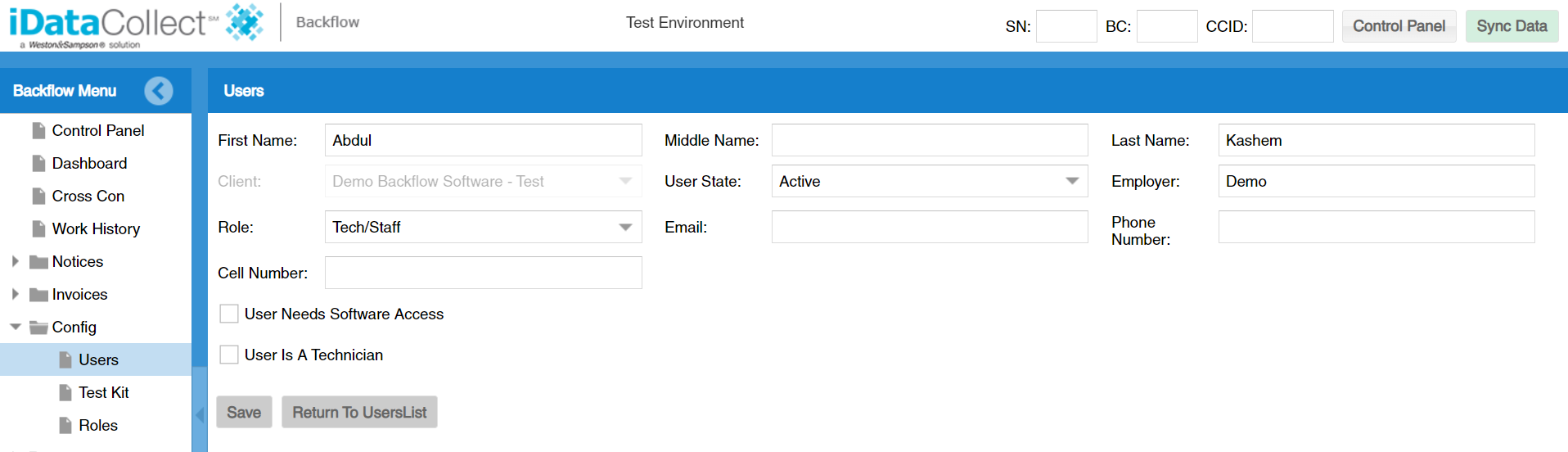
4. Check the "User Is A Technician" and enter the following:
a. Address (User's street address)
b. City (User's city)
c. State (User's state)
d. Zip (User's zip)

5. Have the User sign on the signature pad and click save
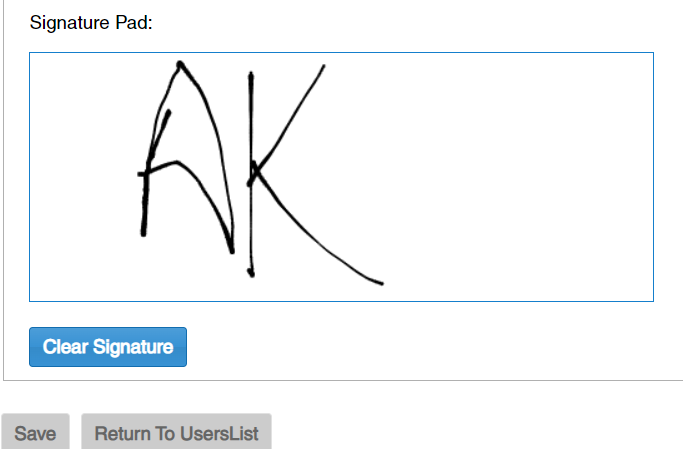
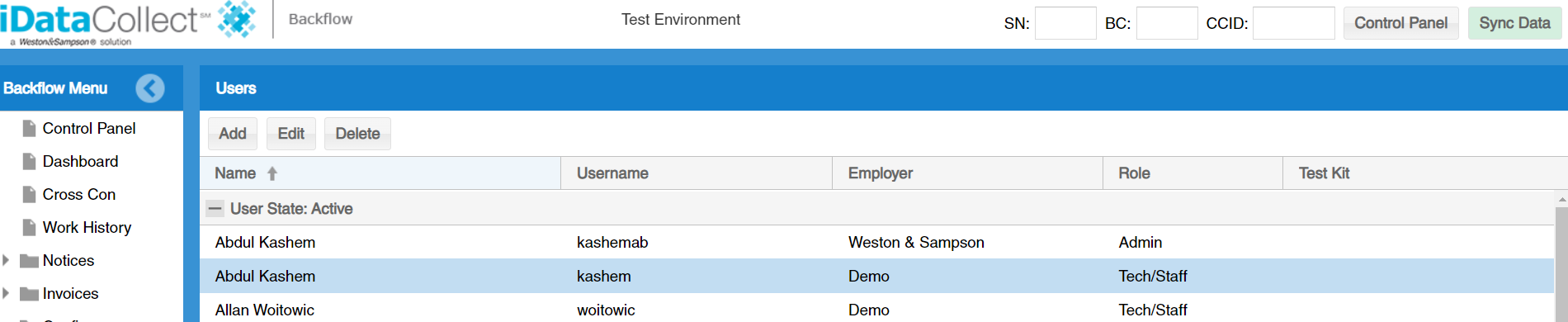
6. The new user has been added. Please note that You must add your new technicians licensing information at the bottom of the User screen, before you can enter tests they have performed.
Comments
0 comments
Please sign in to leave a comment.